.png)
Introduction
Largest Contentful Paint (LCP) is one of the most important metrics in the Core Web Vitals. It measures the time it takes for the largest visible element in the browser window to load, which is very often an image.
The feature LCP Image Preloading Smart Loading allows you to tell the browser which images should be loaded first. To do this, Fasterize automatically generates tags <link rel="preload"> in the <head> on the page, in order to preload the most critical images.
This feature is particularly useful for improving perceived performance and optimizing the LCP score.
💡 Preloading is performed automatically after processing by EdgeSpeed.
What is LCP Image Preloading?
When this feature is enabled, Fasterize analyzes the page's HTML to identify images that match the CSS selectors you have configured.
For each image found, Fasterize:
- generates a tag
<link rel="preload" as="image">in the<head>; - automatically adds the attribute
fetchpriority="high"to indicate to the browser that this is a high-priority resource; - stores the information
srcsetandsizeswhen the image is responsive.
This allows the browser to start downloading these images as soon as the page begins to load, even before they are discovered during document parsing.
How do I configure LCP image preloading?
Enable the feature
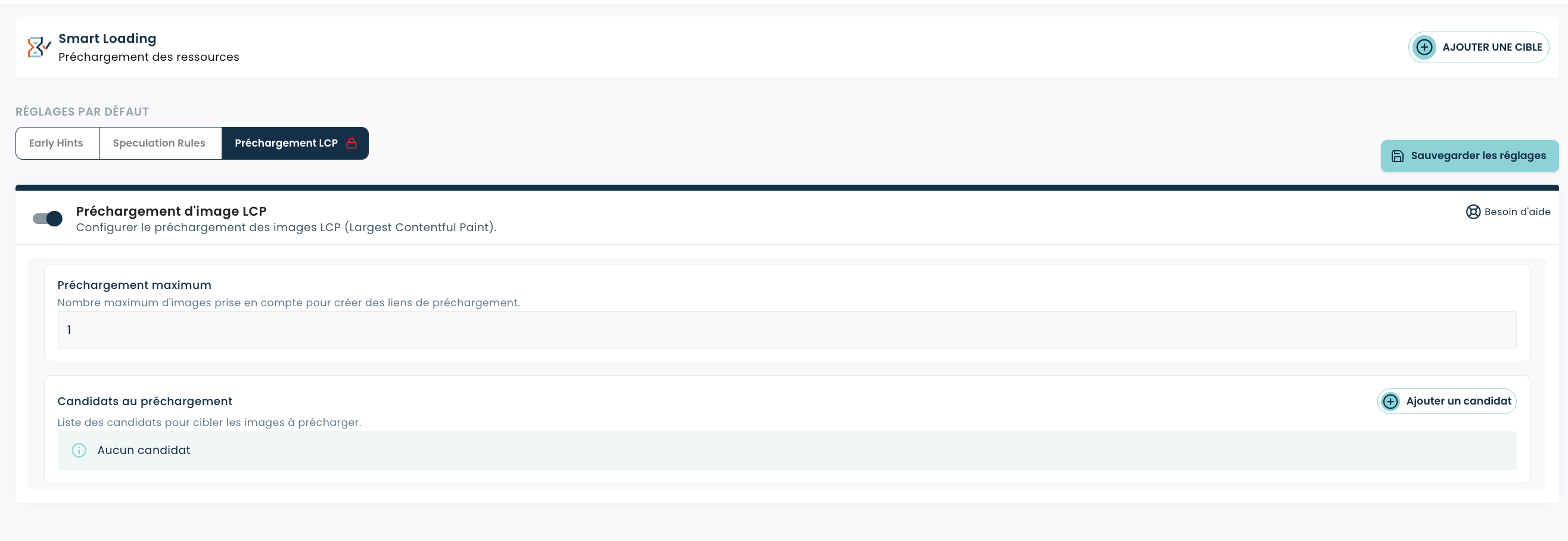
In the Smart Loading app, open the LCP Preloading tab, then enable the feature.
You can then set:
- the maximum number of images to preload;
- the list of candidate images.
Set the maximum number of preloads
The field Maximum preload allows you to limit the number of links <link rel="preload"> generated.
Features:
- required;
- default value: 1;
- Allowed values: 1 through 20.
💡 In most cases, a single image corresponds to the Largest Contentful Paint. It is therefore recommended to keep the default value, unless there is a specific need to change it.
Add a candidate
Each candidate corresponds to an image that Fasterize can preload.
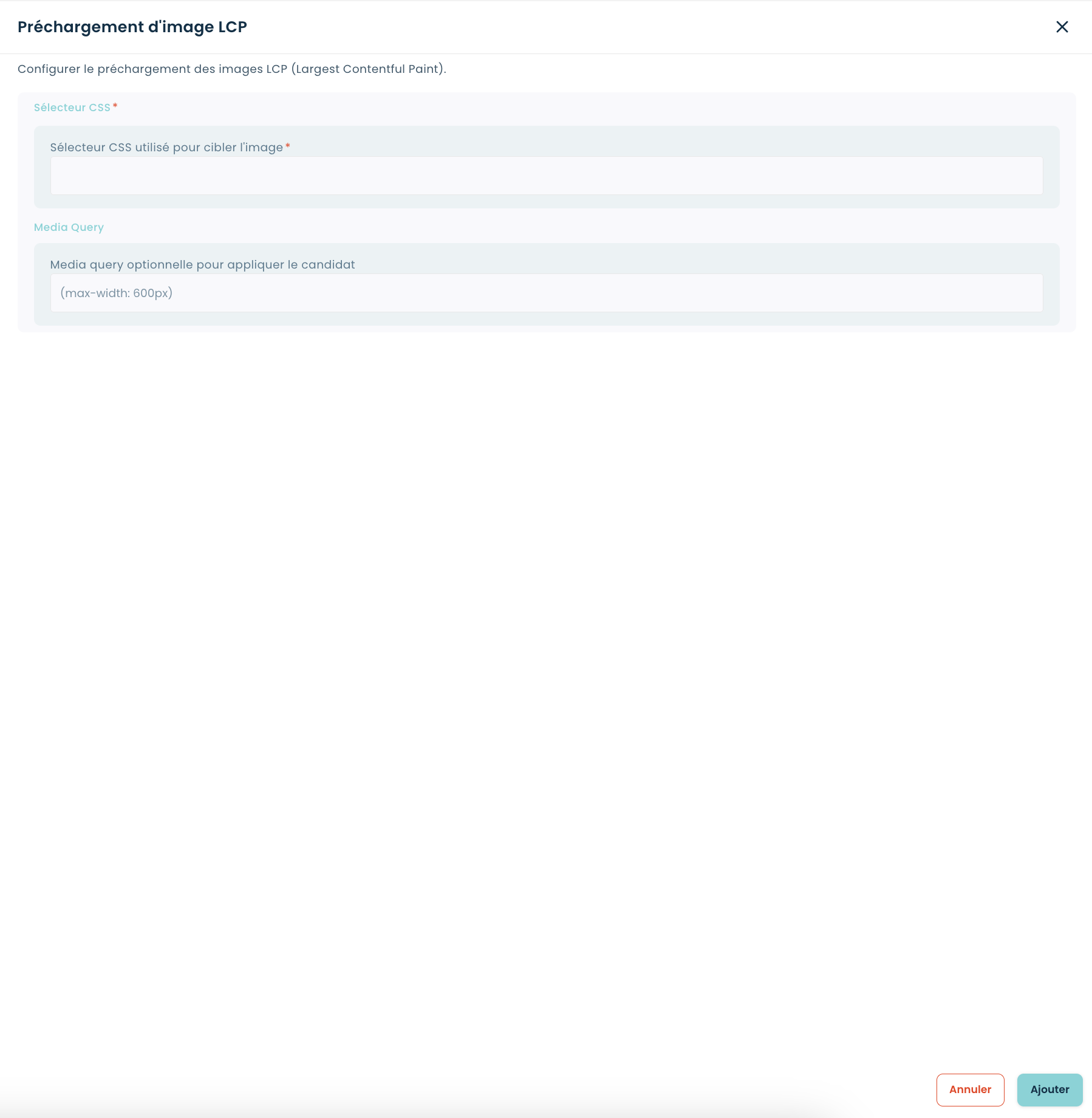
To add a candidate, click " Add a Candidate."
There are two settings available.
CSS selector
The CSS selector helps identify images that are likely to become the Largest Contentful Paint.
Examples:
img.hero

.heroimg

.bannerimg

.product-mainimg
This field is required.
Media Query (optional)
You can restrict a candidate to a specific screen size.
Examples:
(max-width:600px)

(min-width:1024px)
This option is particularly useful when the mobile and desktop versions use different images.
How does Fasterize select the image to preload?
Once the configuration is saved, Fasterize scans the page's DOM after EdgeSpeed processing.
For each element encountered:
- it checks whether the image matches one of the configured CSS selectors;
- it retrieves the image's URL;
- It generates the corresponding preload link.
This feature supports:
- tags
<img>; - tags
<picture>; - background images defined with
background-imageonline; - the attributes
srcsetandsizes.
When multiple formats are available within a tag <picture>, Fasterize prioritizes:
- AVIF;
- WebP;
- other formats.
Integration with Other Fasterize Optimizations
LCP image preloading automatically integrates with several Smart Loading optimizations.
Lazy Loading
If an image is preloaded, Fasterize automatically disables its lazy loading to prevent any conflict between the two mechanisms.
Unlazyload
The browser's native Unlazyload mechanism is automatically applied to preloaded images.
⚠️ Custom Unlazyload implementations (based on CSS classes or site-specific attributes) are not currently supported.
Points to Note
The order of the candidates does not indicate a priority
The order in which the candidates are listed does not affect the choice of the preloaded image.
Fasterize always selects the first element it encounters in the DOM that matches one of the configured selectors.
⚠️ Changing the order of the candidates does not, therefore, change the priority of the images.
How Beacons Work <picture>
For the elements <picture>, Fasterize selects sources based solely on the attribute type.
Attributes media found on the tags <source> are currently not analyzed.
If there are no tags <source> has no attributes type, Fasterize uses the tag directly <img>.
Unsupported URLs
For security reasons, URLs using the following schemas are not preloaded:
data:blob:javascript:
Configuration example
The parameter maximum_preload Sets the maximum number of images that can be preloaded.
The Painting preload_candidates contains the list of candidate images.
{
  "parameters": {
    "maximum_preload":2,
    "preload_candidates": [
      {
        "css_selector":"img.hero-desktop",
        "media_query":"(min-width: 1024px)"
      },
      {
        "css_selector":"img.hero-mobile",
        "media_query":"(max-width: 1023px)"
      },
      {
        "css_selector":".hero-bg",
        "media_query":""
      }
    ]
  }
}
Sample Result
For an image that matches the configured selector, Fasterize automatically generates a preload link similar to this one:
<linkrel="preload"as="image"href="/images/hero-desktop.jpg"imagesrcset="/images/hero-320w.jpg 320w, /images/hero-768w.jpg 768w, /images/hero-1200w.jpg 1200w"imagesizes="(max-width: 768px) 100vw, 1200px"fetchpriority="high">
The image in question also receives the following attribute:
fetchpriority="high"
in order to increase its download priority.
Best Practices
For best results:
- Target only images that are likely to become the LCP;
- Limit the number of preloaded images;
- Use media queries when images differ between mobile and desktop;
- Check the results using Lighthouse or PageSpeed Insights;
- Avoid preloading images located below the fold.
💡 Preloading too many images can slow down the loading of other critical resources. It is generally recommended to limit the number of preloaded images to only those that are truly LCP images.
Abstract
The LCP Image Preload feature helps improve Largest Contentful Paint by automatically generating preload links for critical images on your page.
Using a configuration based on CSS selectors, Fasterize identifies images to optimize and adds tags <link rel="preload"> appropriate ones and automatically applies them fetchpriority="high" in order to prioritize their download.
When used with a limited number of candidates and targeted selectors, this feature is an effective way to improve Core Web Vitals.