Get the most out of EdgeSpeed to optimize your website's performance.
Discover how to use the console, configure targeted rules, effectively manage the cache, and leverage EdgeSpeed applications through videos and practical tutorials.
Our teams are available to answer your questions and provide daily support.

Getting Started with EdgeSpeed

Discover how to use EdgeSpeed to optimize WebPerf: console, targeted rules, cache management, and applications.

Optimize your web KPIs with EdgeSpeed applications

Each EdgeSpeed application acts on a specific performance lever: cache, resources, JavaScript, images, or HTML.
Find out how to activate the right modules according to your objectives and key metrics (LCP, TTFB, CLS, page weight, cache HIT).

EdgeSpeed Application Documentation

Discover the different EdgeSpeed applications and learn how to use them to optimize your site's performance. Each module addresses a specific need: cache, resources, JavaScript, CSS, images, or HTML.

New SmartINP SmartINP
Intermediate Third-party script KPI: INP
SmartINP

Prevent third-party scripts (analytics, tags, ads, etc.) from blocking user interactions and improve your site’s responsiveness for a better INP.

Explore the app
JS application JavaScript
Intermediate JavaScript KPIs: Speed Index, TTFB, FCP, INP
JavaScript

Reduce the impact of JavaScript on page loading through bundling, minification, and smart loading.

Discover the app
CSS application CSS
Intermediate CSS KPI: TTFB, FCP
CSS

Optimize the loading of CSS style sheets to improve initial rendering and reduce display blockages.

Discover the app
Images
Intermediate Images KPI: Speed Index, LCP
Images

Optimize images to improve visual performance using modern formats, lazy loading, and responsive images.

Discover the app

Secure your site with EdgeSpeed's EdgeGuard applications

EdgeGuard applications protect your site from modern web threats: malicious bots, traffic abuse, and automated attacks.
Learn how to secure your pages and endpoints directly without compromising performance.

EdgeGuard Application Documentation

Discover EdgeGuard applications dedicated to the security of your site. Each module protects your pages and endpoints against bots, automated attacks, and traffic abuse, directly at the edge.

WAF
Essential Firewall KPI: Blocked requests
Firewall

Control and filter access to your site by allowing or blocking requests based on IP address, country, or user agent to enhance security and limit unwanted access.

Discover the app
traffic limiter application Waiting Room
Intermediate Traffic KPI: Blocked abuse
Traffic Limiter

Regulate traffic spikes by limiting simultaneous access and setting up a virtual waiting room to maintain your site's availability during peak traffic times.

Discover the app

Need help using a Fasterize application?

Our teams are here to help you use Fasterize applications. Whether you need assistance with configuration, choosing modules, or analyzing results, don't hesitate to contact our support team: we're here to help you every day.

Fasterize use cases

Explore real-life situations encountered by our customers and discover how Fasterize can effectively address them without modifying your source code.

🧩

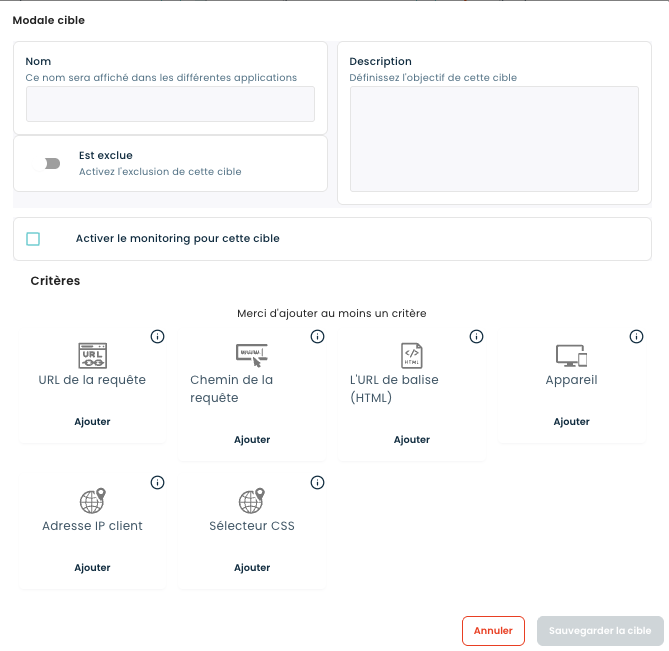
How can I exclude certain pages from optimization using targeted rules?

Disable all Fasterize optimizations on specific pages (administration, AJAX, sensitive scripts) without touching your code.

Read the guide
🔐

How do I restrict access to my site by IP address with the Firewall?

Protect a pre-production, back-office, or sensitive environment by restricting access to authorized IP addresses.

Read the guide
🌍

How to block certain countries using the Firewall application?

Reduce abuse and secure your site by blocking access based on the geographic origin of visitors.

Read the guide
🤖

How to block bots or unwanted browsers with the Firewall?

Identify and block unwanted bots, scrapers, or browsers using user-agent filtering.

Read the guide
🧪

How to disable Fasterize rules via URL settings?

Test, debug, or analyze your site by temporarily disabling certain rules via URL parameters.

Read the guide

EdgeSpeed FAQ

Find answers to frequently asked questions about EdgeSpeed, how it works, its applications, and performance management.

EdgeSpeed is Fasterize's web performance optimization solution. It works on the edge to speed up page loading without changing your site's source code.

EdgeSpeed optimizes HTML cache, static resources (CSS, JavaScript, images), compression, script deferral, and page rendering to improve Core Web Vitals (TTFB, LCP, CLS, INP).

The goal: to improve speed, stability, and user experience, while increasing SEO and business performance.

No. All optimizations are applied at the Edge level, without any deployment or modification of the code at the source.

Activation is done by modifying the DNS to route traffic through Fasterize. Fasterize is a service that optimizes web pages by compressing and caching them.

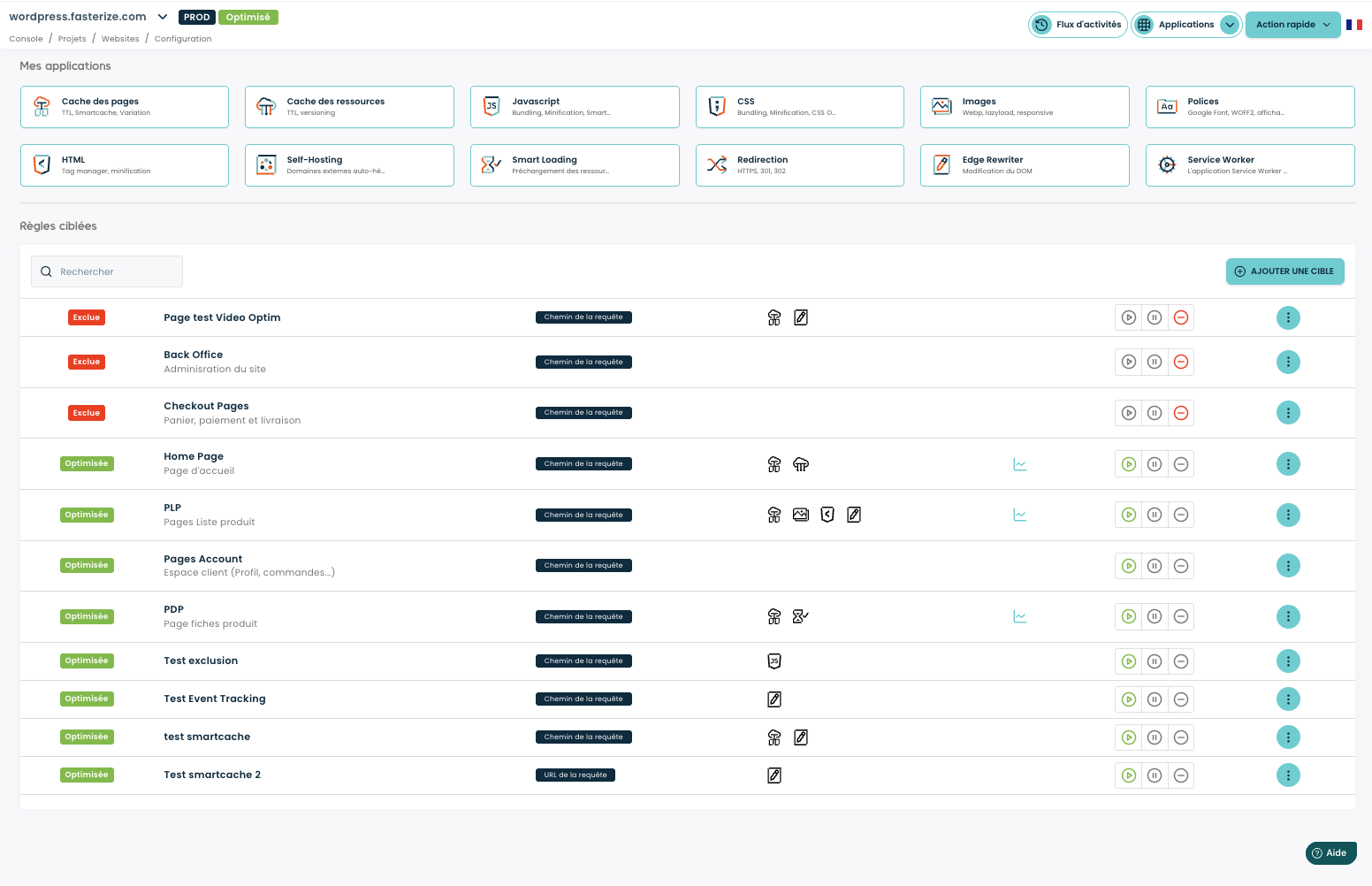
Yes, thanks to targeted rules, you can restrict optimizations to specific pages or segments.

An acceptance phase allows optimizations to be tested before they are deployed in production.

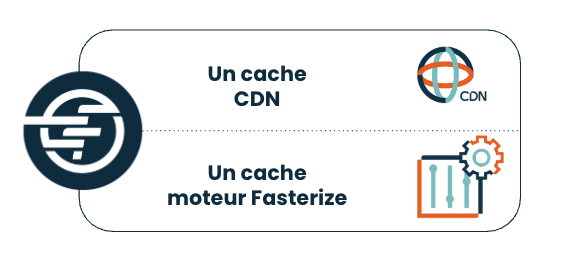
Fasterize caches your HTML pages at the edge to reduce TTFB and limit calls to the origin. The cache takes into account necessary variations (device, bots, context) and can fragment a page via SmartCache to combine dynamic content and strong caching.

You can control the cache duration with TTLs and purge the cache from the console (URL, directories, global purge).

Read the article

They allow you to control the caching duration and optimize performance without blocking dynamic content.

From the EdgeSpeed console, you can purge the cache in several ways: HTML pages, static resources, by URL (maximum 30), by directory (maximum 30), or via a global purge including the domain and its associated domains.

The HTML cache applies to pages, while the resource cache applies to static files (CSS, JS, images).

They enable you to activate targeted optimizations according to your WebPerf objectives.

Applications are managed directly from the Fasterize console.

Yes, they are designed to work together.

You can track the various KPIs directly in the Fasterize console, in the Monitoring tab.

Fasterize neutralizes certain tracking parameters to improve the cache rate without impacting your measurement tools.

Read the article

If an optimization causes unexpected behavior, you can start by temporarily disabling the affected application from the EdgeSpeed console to identify the source of the problem.

It is also possible to test a page without certain optimizations by adding specific parameters to the URL. These parameters allow you to temporarily disable Fasterize rules to compare behavior with and without optimization.

You can also use the Fasterize browser extension, which allows you to enable or disable optimizations in real time, view the rules applied, and facilitate diagnosis without changing the configuration.

This approach is particularly useful during the acceptance phase or to isolate a JavaScript conflict, a rendering issue, or an interaction with a third-party script. If in doubt, contact support, specifying the URL tested and the context observed.

Via the Fasterize Support Help widget directly on the console at the bottom right.

Yes, the Fasterize teams can provide you with customized support for your web performance or SEO goals.

Yes, mechanisms guarantee direct access to the source in case of unavailability.