.png)
Introduction
Image file sizes often account for the largest portion of the resources downloaded by a browser. Images that are too large or improperly sized can slow down page loading, degrade Core Web Vitals, and negatively impact the user experience.
To address these issues, Fasterize allows you to automatically resize and crop images on the fly using URL parameters.
This feature allows you to:
- generate multiple image sizes from a single source;
- resize images to fit different screens;
- significantly reduce the resource load;
- improve loading performance.
The processing is performed in real time, and the optimized images are then delivered directly from our CDN.
How does image resizing work with Fasterize?
The Fasterize optimization engine applies transformations directly using parameters added to the image URL.
For each request:
- the source image is retrieved;
- the requested transformation is applied;
- The new version is cached and then served via the CDN.
This allows you to dynamically create different versions of the same image without having to generate multiple files manually.
💡 This means a single source image can be used for desktop, tablet, and mobile devices.
What is the difference between resizing and cropping?
Fasterize distinguishes between two main mechanisms: resizing and cropping.
Resizing
Resizing preserves the proportions of the original image.
For example:
- a maximum width can be specified;
- The height is then automatically recalculated.
This mode is particularly useful for:
- responsive images;
- thumbnails;
- product galleries.
Cropping
Cropping adjusts the image to a specific format by removing part of it.
Unlike resizing:
- the original proportions are not preserved;
- Part of the image may be cropped.
This behavior is useful for:
- banners;
- product cards;
- consistent formats in a list.
💡 Example: Converting a horizontal desktop image into a vertical mobile thumbnail.
Resize an image with frz-width and frz-height
Set a maximum width
The parameter frz-width (or frz-w) allows you to set a maximum width.
Example:
<http://www.domain.com/image.png?frz-w=1000>
In that case:
- the image is resized to a maximum width of 1000 px;
- The height is automatically calculated to maintain the proportions.
Set a maximum height
The parameter frz-height (or frz-h) works the same way for pitch.
Example:
<http://www.domain.com/image.png?frz-h=300>
The image is then resized using:
- a maximum height of 300 px;
- a width that is automatically recalculated.
Crop an image with Fasterize
When frz-width and frz-height If both are used at the same time, Fasterize can apply automatic cropping.
Example:
<http://www.domain.com/image.png?frz-height=100&frz-width=400>
The image is then resized to exactly the requested dimensions.
By default:
- Fasterize preserves the area of the image deemed most important;
- the mode
coveris applied.
Select the cropping area using frz-gravity
The parameter frz-gravity allows you to control the area that is retained when cropping.
Example:
<http://www.domain.com/image.png?frz-height=100&frz-width=400&frz-gravity=center>
Available values:
northsoutheastwestcenterentropyNote
Understand entropy and Note
Fashion trends entropy and Note use automatic detection algorithms.
entropy
This mode is intended for:
- the area containing the most visual detail;
- the region with the greatest visual “richness.”
This is the default behavior of the Fasterize engine.
Note
This mode is intended for:
- areas that naturally draw the eye;
- bold colors;
- the illuminated areas;
- faces and skin tones.
💡 The mode Note can be particularly useful for lifestyle photos or images featuring people.
Understanding the modes frz-fit
The parameter frz-fit controls how Fasterize interprets the requested dimensions.
cover (default mode)
The image fully covers the specified dimensions.
Features:
- maintaining proportions;
- possible cropping.
Use case:
- banners;
- product cards;
- consistent thumbnails.
contain
The image is fully visible within the defined area.
Features:
- no cut parts;
- maintaining proportions;
- possible empty bands.
Example:
?frz-height=100&frz-width=400&frz-fit=contain
fill
The image is stretched to exactly fit the specified dimensions.
Features:
- no preservation of proportions;
- risk of deformation.
Use case:
- specific graphic elements;
- placeholders.
inside
The image is resized to fit entirely within the specified dimensions.
Features:
- maintaining proportions;
- dimensions that are always less than or equal to the target.
outside
The image is resized to meet the minimum dimensions specified.
Features:
- maintaining proportions;
- dimensions that are always greater than or equal to the target.
Visual example of the different resizing modes
The image below illustrates how the different modes behave frz-fit applied to the same source image.
It allows you to compare:
- simple resizing;
- automatic cropping;
- maintaining proportions;
- the differences between the modes
contain,fill,insideandoutside.
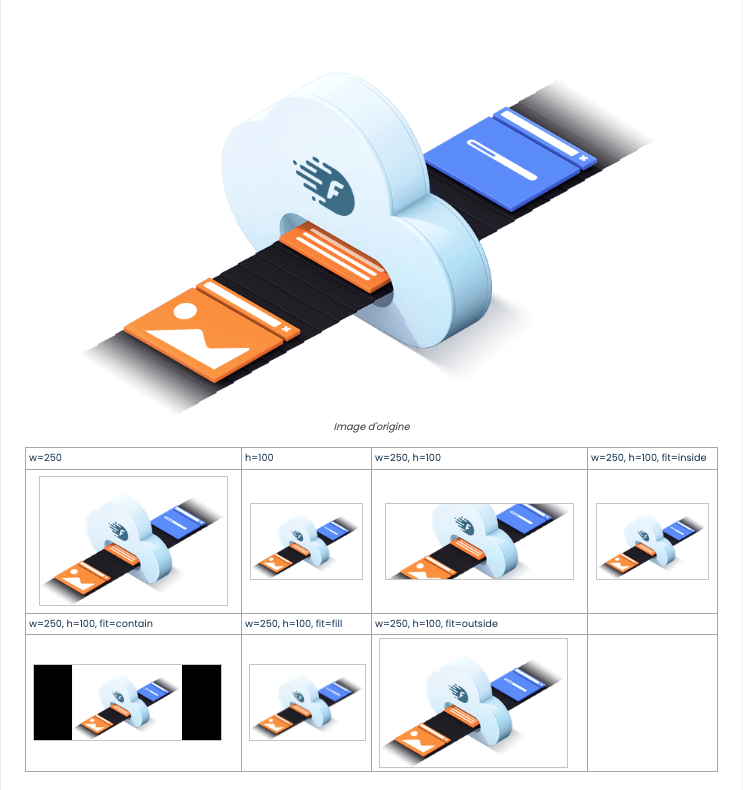
💡 The mode cover is used by default by Fasterize when both width and height are specified.
ModeBehaviorReframingcoverFills the area completelyYescontainKeep the entire imageNofillStretch the imageNoinsideStay within the dimensionsNooutsideAt least as large as the dimensionsPossible
Prevent images from being enlarged with frz-enlarge=false
By default, Fasterize does not enlarge images that are too small.
The parameter:
frz-enlarge=false
allows you to explicitly preserve this behavior.
This prevents:
- a loss of quality;
- blurred vision;
- artificially enlarged images.
⚠️ Enlarging a small image never improves its original quality.
Impact of Image Resizing on Web Performance
Resizing images can drastically reduce the size of downloaded files.
The main benefits are:
- reduced loading time;
- improvement in Largest Contentful Paint (LCP);
- reduced CPU usage on the browser side;
- optimization of the mobile experience;
- reduction in bandwidth usage.
The browser also no longer needs to resize images on its own, which improves rendering performance.
💡 Using dimensions tailored to each viewport helps prevent the download of unnecessarily large images.
Functionality limitations
Supported formats:
- JPEG
- PNG
- WebP
- AVIF
Unsupported formats:
- GIF
- SVG
Special case of PNG images
Some PNG-8 images may become larger in file size after conversion.
In this case, we recommend enabling:
- aggressive PNG optimization;
- converting PNG24 to PNG8.
This significantly reduces the final file size of the images.
Conclusion
Resizing and cropping images with Fasterize automatically adapts visuals to each display context while improving web performance.
Using URL parameters:
- several variants can be generated on the fly;
- the images become lighter;
- responsive design is simplified;
- The user experience is improved.
Settings frz-fit and frz-gravity also provide precise control over the final appearance of the images.
💡 For best results, combine this feature with Fasterize’s other image optimization tools.