.png)
Introduction
Are you deploying a new version of your site and want to clear the cache automatically, without opening the console? Do you want to analyze Googlebot or AI bot activity in your logs?
The Fasterize API lets you perform these actions from your scripts, your deployment tool, or your CI. Let's take a look at how to use it, from obtaining the token to the most common calls.
What is the Fasterize API?
The Fasterize API is a REST API available at https://api.fasterize.com. In particular, it allows you to:
- clear the Fasterize cache (the entire cache, a specific URL, HTML pages, or static files);
- retrieve your website's access logs;
- disconnect and reconnect a site;
- enable or disable optimizations;
- Manage IP addresses that are blocked or allowed by the firewall.
Complete documentation for each route is available at https://api.fasterize.com/doc/redoc.
How do you get your API token?
Each request must be authenticated with an access token, which is sent in the HTTP header Authorization :
curl -H 'Content-Type: application/json' -H 'Authorization: YOUR_TOKEN' https://api.fasterize.com/v2/configs/VOTRE_CONFIG_ID/...The token cannot be obtained from the console: To retrieve it, contact Fasterize support or your assigned CSE, specifying the relevant site.
⚠️ Warning: A token is linked to a specific configuration. If you manage multiple sites, you'll need the token corresponding to each one. Using one site's token to control another site will result in an error. 403.
How do you find your configuration ID?
All API endpoints contain your site's configuration ID ({id} (in the documentation). You can find it in the Fasterize console, under the Websites of your organization, column Config ID, on your domain's line.
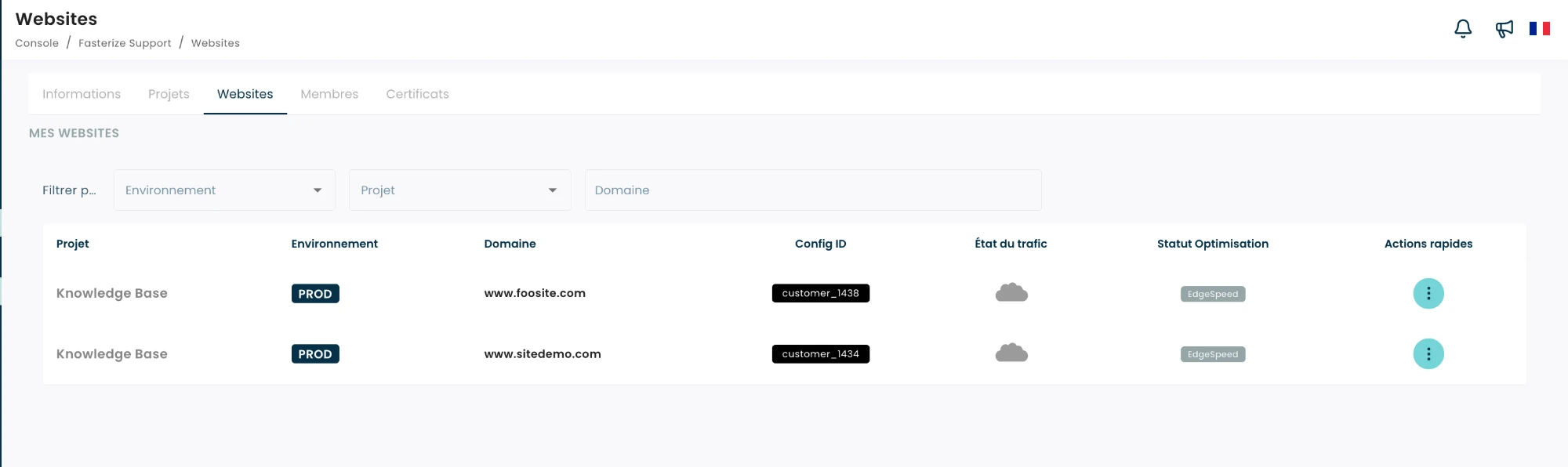
⚠️ Warning: Copy the ID exactly as it appears, including the prefix customer_ including (for example customer_1438). An identifier without its prefix returns an error 403 "User cannot perform this action", even on a casual read.
💡 Tip: Test your token and ID with a read request before initiating an action:
curl -H 'Authorization: YOUR_TOKEN' https://api.fasterize.com/v2/configs/customer_3184/statusHow do I clear the cache using the API?
There are several ways to clear the cache, depending on what you want to refresh:
| Need | Road | Body of the request |
|---|---|---|
| Clear All | POST /v2/configs/{id}/cache/purge | none |
| Remove one or more URLs | POST /v2/configs/{id}/cache/purge/urls | {"urls": ["https://www.example.com/page.html"]} |
| Clear all HTML pages | POST /v2/configs/{id}/cache/purge/tags | {"tag": "html"} |
| Clear all static files | POST /v2/configs/{id}/cache/purge/tags | {"tag": "asset"} |
| Clear a directory of static files | POST /v2/configs/{id}/cache/purge/directories | {"directories": ["https://www.example.com/wp-content"]} |
Example of how to flush a page after it has been updated:
curl -X POST -H 'Content-Type: application/json' -H 'Authorization: VOTRE_TOKEN' \
  https://api.fasterize.com/v2/configs/customer_3184/cache/purge/urls \
  -d '{"urls": ["https://www.example.com/promotions.html"]}'
⚠️ Note:
- URL-based purging accepts up to 30 URLs per call;
- Clearing a page's URL does not clear the images, CSS, and JavaScript it contains;
- The URL to be purged must belong to a domain specified in the configuration: a URL from another domain will not be purged;
- Directory-based purging applies only to static files, not to HTML pages.
💡 Tip: Add the parameter description when you call (for example ?description=v29.5 Deployment). It appears in the transaction history and helps you track who cleared what.
How do you retrieve your access logs?
The Road GET /v2/configs/{id}/logs returns the access logs for the last seven days.
| Parameter | Role |
|---|---|
from | start of the period, in seconds since the Unix epoch (default: the last 15 minutes) |
to | end of the epoch, in seconds since the Unix epoch |
domain | limit logs to one or more domains |
onlySeoVisit | Keep only visitors coming from a search engine (Google, Bing, Baidu, Yandex) |
onlySearchBot | Keep only search engine bots (Google, Bing, Baidu, Yandex) |
onlyAIBot | Keep only bots and AI agents (OpenAI, Anthropic, Perplexity, etc.) and visits sent by an AI assistant |
format | json (by default), jsonl, Apache or apache_with_response_time |
Example of how to retrieve yesterday's logs:
from=$(date -d "yesterday 00:00:00" '+%s')
to=$(date -d "yesterday 23:59:59" '+%s')
curl "https://api.fasterize.com/v2/configs/customer_3184/logs?from=${from}&to=${to}" -H "Authorization: VOTRE_TOKEN"
Each log line contains, among other things, client_ip, domain, url, method, status, response_time (in milliseconds), user_agent, user_agent_class (mobile, desktop_recent, tablet, bot, old) and fstrz_flags.
⚠️ Note: Logs are available with a delay of approximately 30 minutes from real time.
💡 Tip: To track AI bots visiting your site, simply add &onlyAIBot=true when you call.
How do you unlink and relink a site?
In the event of an incident, you can disconnect your site from Fasterize: this action takes place at the DNS level, and traffic is then routed directly to your origin server.
# Disconnect the site
curl -X POST -H 'Authorization: YOUR_TOKEN' https://api.fasterize.com/v2/configs/customer_3184/status/unplug

# Reconnect the site
curl -X POST -H 'Authorization: YOUR_TOKEN' https://api.fasterize.com/v2/configs/customer_3184/status/plug
To check the connection status, use GET /v2/configs/{id}/status/plugged.
How do I disable optimizations without taking the site offline?
If you just want to disable optimizations, traffic can still go through Fasterize: your pages simply won't be optimized anymore.
curl -X POST -H 'Content-Type: application/json' -H 'Authorization: VOTRE_TOKEN' \
  https://api.fasterize.com/v2/configs/customer_3184/status \
  -d '{"products": ["edge_speed"], "status": false}'
To re-enable optimizations, send the same request with "status": true.
💡 Tip: Disabling optimizations is often enough to check whether a display issue is caused by Fasterize. Disconnecting the site is only necessary if the problem persists.
How do I block or allow an IP address?
The firewall rules can be viewed using GET /v2/configs/{id}/apps/firewall and are updated with PUT On the same route: First, retrieve the current configuration, modify the list of IP addresses, and then resend the complete configuration.
⚠️ Please note: It takes 5 to 7 minutes for the change to take effect.
For a one-time change, the Firewall app in the console is still the easiest way: My Apps > Firewall > New Access Rule.
Conclusion
With your token and the correct configuration ID, you can now integrate Fasterize with your tools: clear the cache with every deployment, monitor your logs, or respond to an incident with a single command. For more information, all available routes are described at https://api.fasterize.com/doc/redoc.